
How to trim and combine audio on Mac
Trim recordings, split clips, add a music track, and export an edited mix in TonePebble while preserving the original audio.
Requires macOS 15 or later.
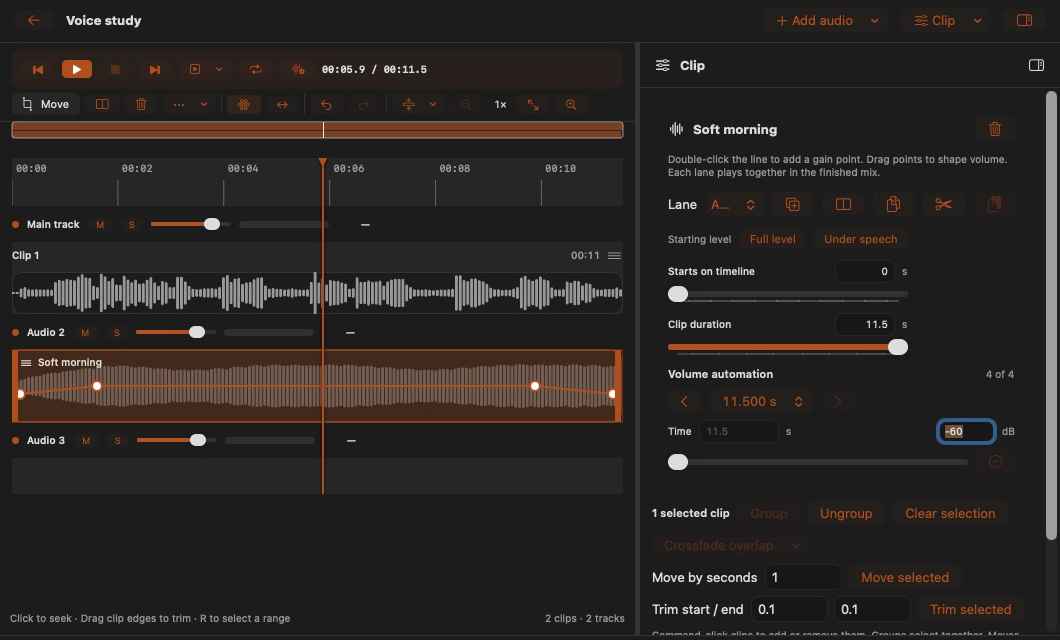
Open your recording in the editor
Select a recording and choose Edit audio. The timeline shows the arrangement; the inspector holds the selected editing tool. Your original audio stays intact and the draft saves as you work.
Trim or split a clip
Drag a clip’s start or end edge to trim it. To split, select a clip, place the playhead inside it, and press ⌘B. Use the Range tool to select a time interval across waveforms. Listen to a selection before deleting or keeping it.
Add and arrange another track
Choose Add audio to bring in a file or library recording. Move an added clip by its title to place it on the timeline or another lane. Enable Snap to align edges with cuts or the playhead. Use a separate track for a music bed so you can balance it independently.
Balance the mix
Open Mixer for track gain, mute, and solo. Add points to a clip’s volume line to change its level over time—for example, lower music beneath speech. Use Sound for track processing, and compare the result with processing switched off.
Listen and export
Play through the edit, especially around cuts and fades. Choose Export in the editor to save an edited mix. M4A is compact for sharing; WAV is useful for further editing. Use edited stems when you need separate tracks at the full arrangement length.
Keep tracks in sync
With Ripple off, removing a passage leaves other audio at its existing position. With Ripple on, the removed time interval closes across tracks. Listen to the full mix before accepting a cut. Undo restores the earlier arrangement.
Choose the right export
An edited mix combines the arrangement. Edited stems keep tracks separate for another audio tool. Exporting an AAC source as WAV avoids another AAC encoding step but cannot restore detail already lost during capture.
Find a passage by its words
If your recording has timed words, the Transcript inspector can help you locate the passage before editing. Transcription requires macOS 26 or later.