
Choose a format and export your corrected video
Use MP4 for sharing or QuickTime for editing and original-audio preservation.
Before you begin: An analysed clip · writable destination and sufficient storage
Follow the steps
Finish reviewing the correction.
Play the clip at normal speed, inspect cuts and difficult frames, and choose a correction you want to keep. Preview mode is for inspection; export always writes one corrected picture at original dimensions, not the Side by side layout.
Open the save dialog.
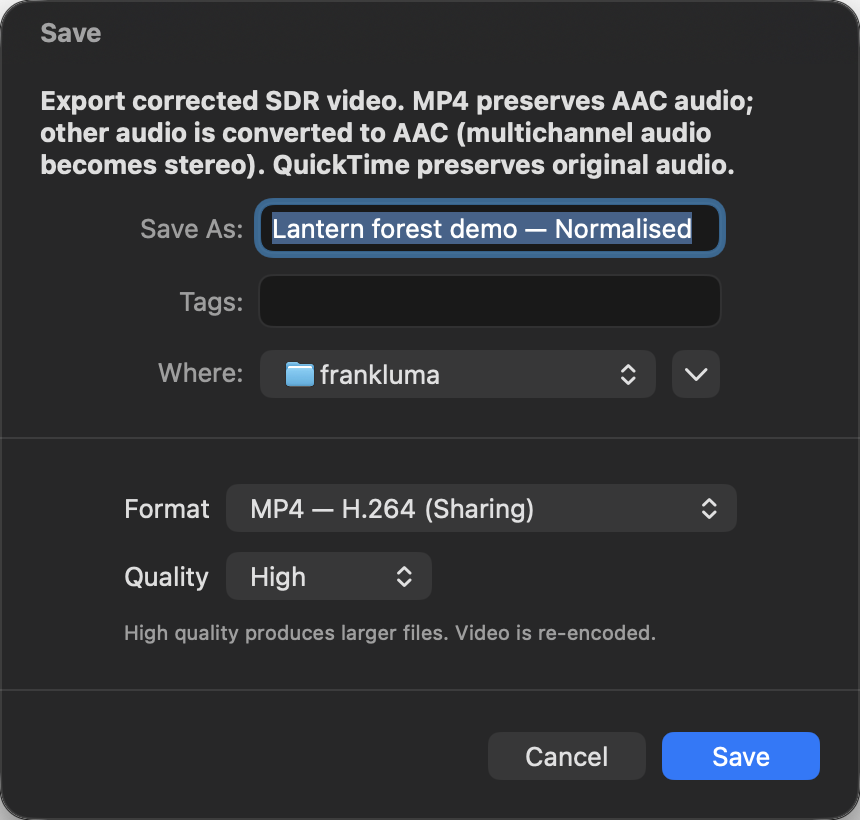
Choose Export… (⇧⌘E). Give the file a clear name and choose a destination. Keep the source and corrected result distinguishable. Select Format before confirming the extension.
Choose a codec/container.
Use MP4 — H.264 (Sharing) for a broadly usable sharing copy. H.264 is also available in QuickTime. HEVC offers a smaller-file option in MP4 or QuickTime, but check receiving software compatibility. QuickTime — ProRes 422 (Editing) suits further editing and uses more storage.
Choose quality and understand audio.
H.264/HEVC offer Standard or High quality; High produces larger files. QuickTime preserves compatible original audio. MP4 preserves AAC; other audio is converted to AAC and multichannel audio becomes stereo. Choose QuickTime when preserving those original audio tracks matters.
Save and let export complete.
Choose Save. You can cancel the operation; cancellation does not replace an existing destination. Keep the source drive connected and leave space for processing. The source file is not modified. ProRes uses a higher-precision processing path but is still a re-encoded video, not a lossless source copy.
Check the encoded file.
Use Show in Finder when export completes and open the result in a player or editor. Verify dimensions/orientation, duration, end frame, audio and a few difficult scenes. A correct preview or smooth graph does not by itself prove the encoded file looks right.
End the session only after saving what you need.
Use Save Project (⌘S) before closing if you want to resume editing. Exported movies and saved projects are separate outputs. Closing with unsaved edits offers Save Project, Discard Changes or Cancel; choose Cancel to keep editing.
Choose based on the destination
An MP4/H.264 sharing copy is different from an editing master. HEVC decoding varies with receiving hardware/software. ProRes 422 prioritizes an editing workflow and storage cost. No format reconstructs highlight detail or fidelity already missing in the source.
Troubleshoot export
Check free space, folder write access and source availability. Select another writable local destination using the save dialog. If audio conversion fails, try QuickTime to preserve compatible original audio. Copy the exact error along with codec/container/quality and macOS version when contacting support.