
Review and shorten pauses across tracks
Find quiet intervals, protect other speakers, and apply only reviewed cuts.
Before you begin: An editable timeline with speech · recording stopped
Follow the steps
Choose the analysis track.
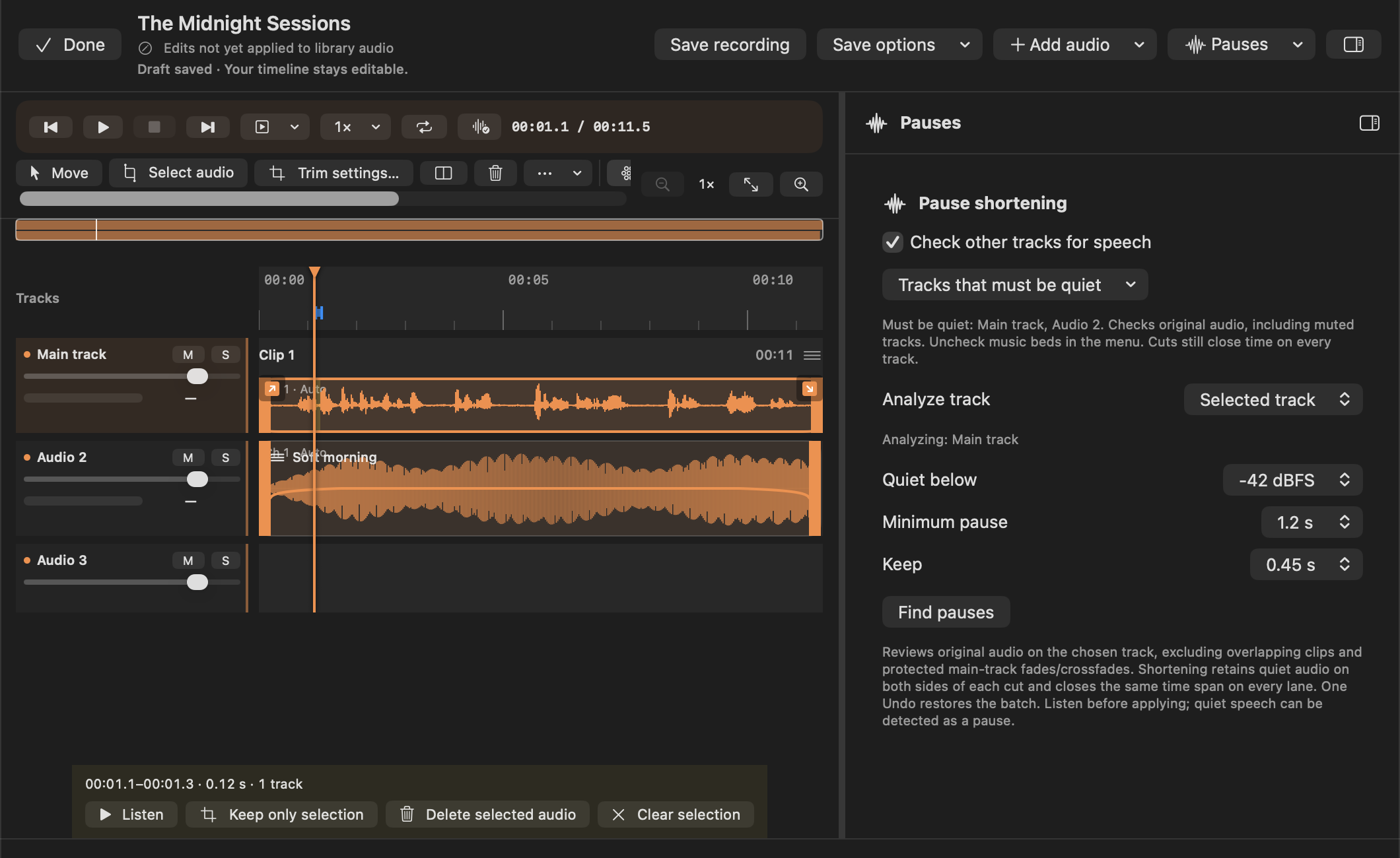
Open the Pauses inspector and choose Analyze track. Select the speaker track whose pauses you want to shorten. Detection reads retained original source audio, including imported clips; overlapping clips on that track are excluded.
Decide what must stay quiet.
Keep Check other tracks for speech on. In Tracks that must be quiet, keep speaker tracks checked and uncheck music beds. Muted checked tracks still protect speech. The analysis track stays checked; new tracks are checked by default.
Set pause criteria.
Choose quiet threshold, minimum pause, and how much quiet duration to Keep. Start conservatively so breaths and deliberate pacing remain. These thresholds examine source levels before effects or gain. A music bed left checked may prevent otherwise useful suggestions.
Find and inspect suggestions.
Choose Find pauses. Suggestions appear in the timeline while the inspector is open. Use Show to reveal one; click its region to include/exclude it. Drag start/end bars within its detected quiet bounds. Darker centre shading previews removal, with Keep duration divided across the edges.
Listen in the full mix.
Use Listen on every proposed cut. Confirm other voices, room tone and cues remain natural. Escape cancels an in-progress boundary drag. Do not treat a quiet waveform as proof there is nothing meaningful there.
Apply the reviewed batch.
Choose Shorten selected pauses. The selected intervals close across every track, including unchecked music or speech tracks, preserving alignment. One Undo restores the batch. Clear dismisses suggestions without editing; changing the project or analysis settings also clears them.
Review joins and save.
Play each resulting join at 1×, including fade/crossfade edges. Main transitions have protected margins and conflicting cuts can be rejected. Undo or refine the criteria if speech is lost. Save recording to update the library’s finished audio.
Why other tracks matter
Cuts still close time on all tracks. If you uncheck a speaker lane or turn the cross-track check off, a suggestion on the analysed lane can remove that speaker’s words. Always audition the full mix.
No useful suggestions?
Lowering a quiet threshold can reject more material; a larger minimum duration rejects shorter pauses. Check whether overlapping clips, a checked music bed, fades or crossfades exclude the intervals. Change one criterion, analyze again, and review afresh rather than making all settings aggressive.