
Save, export, and deliver finished audio
Choose the right output, preview loudness, and preserve an editable handoff.
Before you begin: A finished arrangement · space for rendered files
Follow the steps
Choose library save or external export.
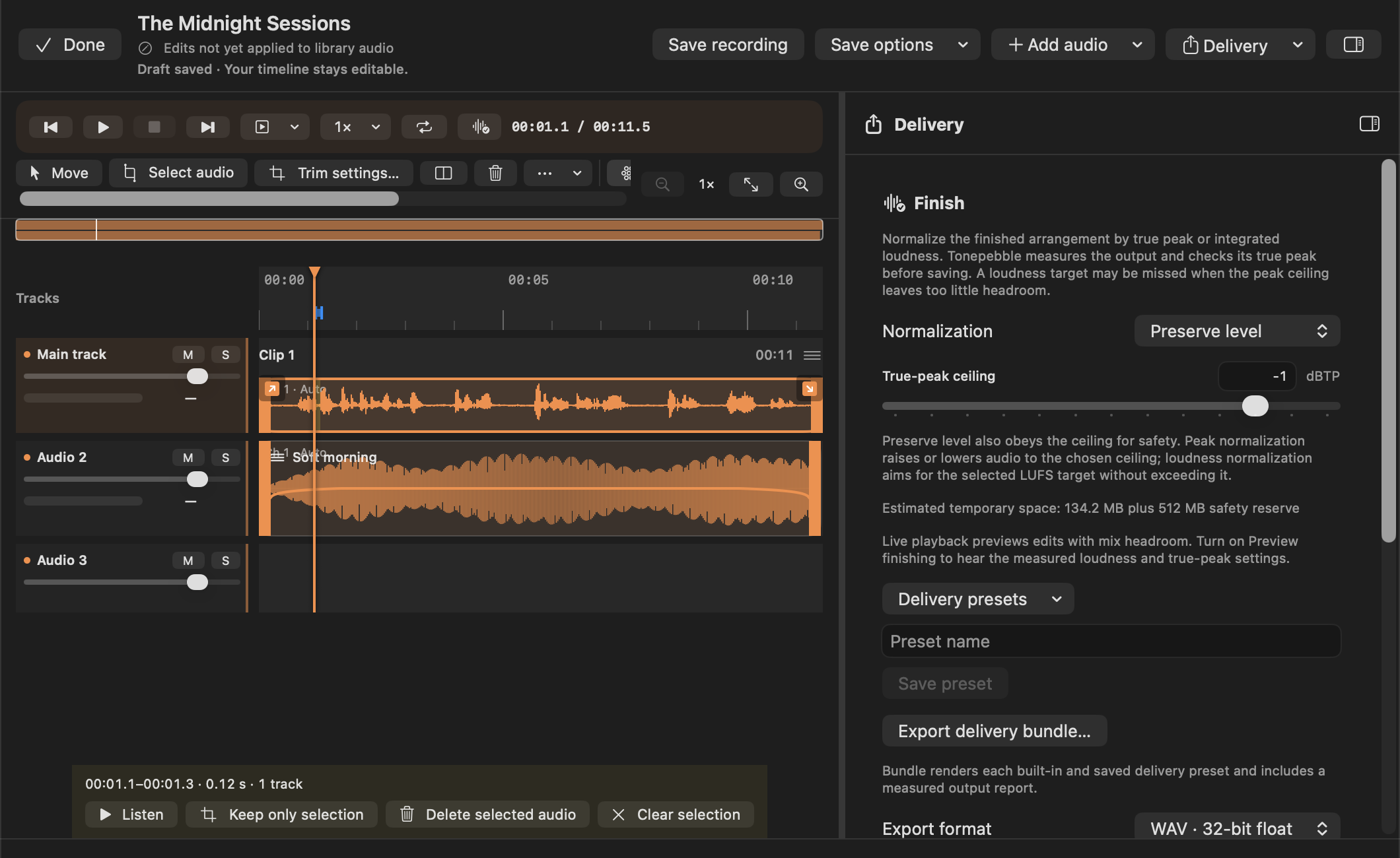
Save recording makes finished library audio. Export writes outside the library and offers more formats. A saved draft is not finished audio. If sharing from the library while edits are pending, use Save edited copy and share, or deliberately choose Share saved audio.
Set delivery and metadata.
Open Delivery. Choose a podcast, broadcast, archive or custom preset. Enter title, author, description and chapters as needed. Preserve level keeps your chosen level; Peak normalize targets peaks; a LUFS target aims at loudness under a true-peak ceiling. If headroom is insufficient, the loudness target may not be reached.
Hear the finishing result.
Enable Preview finishing to render a measured preview. Play it at 1× and inspect loudness/peak results. Refresh after edits. Ordinary live playback reserves headroom and shows sample-peak estimates; it is not the final true-peak measurement.
Export the mix.
Choose Export edited mix…. WAV supports 16-bit, 24-bit or 32-bit float; FLAC is 24-bit. AAC/M4A is compact; ALAC/M4A is lossless compression. MP3 supports mono/stereo, 44.1 or 48 kHz and 128–320 kbps. Choose the needed sample rate; optional dither applies to integer output. Select a destination and wait for completion.
Export parts when needed.
Choose Export edited stems… for one file per occupied track at full arrangement length. Stems retain processing and automation, disable normalization and still obey the peak ceiling. Separate-clip export is for individual clips, rather than an aligned full-length stem set.
Verify the delivered files.
Open the file in the receiving player/editor. Check start/end, fades, track balance and chapters. A single export includes
.report.jsonwith measured loudness, true peak and applied gain. Chapter support varies by player. WAV/FLAC avoid another AAC encoding step but cannot recover detail already lost in an AAC source.Keep a portable editing copy.
Use Export consolidated project for a
.tonepebbleprojectfolder containing draft, original source, added audio and linked transcript metadata. Keep the folder together. In the other library, use Add audio → Import consolidated project to create a separate copy.
Deliver an excerpt collection
Open Excerpts. Queue a selected passage/clip or a source bookmark, reorder entries, and use Replace from selection to revise a queued snapshot. Export the bundle for audio, captions, text, chapters, source identities, speaker labels and original/edited timestamps. Queued snapshots remain independent of later draft changes.
A practical format choice
For editing handoff, use WAV or an agreed lossless format and aligned stems. For compact everyday sharing, AAC or MP3 is convenient. ALAC/FLAC reduce size without another lossy step. The library player’s export menu is simpler than the editor’s and offers M4A/WAV and source tracks where available.
If export does not finish
Check free space and a writable destination. Use Cancel export where offered; cancellation can finish the current copy operation before stopping. Previous exports remain intact and source-track exports choose a new numbered folder if necessary. Reopen the app or retry in the same directory to allow interrupted publication recovery, and note any recovery error.